inZOI Build Mode Explained
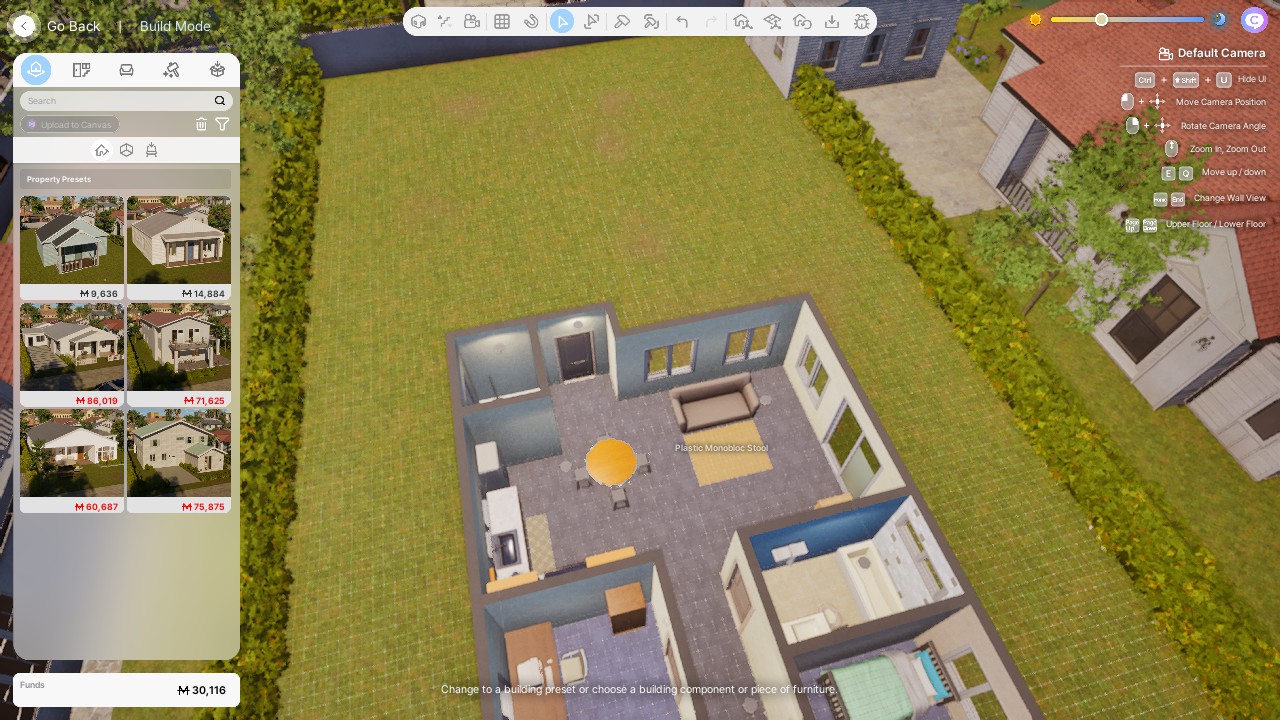
Build Mode is the powerful and intuitive toolset within inZOI that empowers you to design, construct, furnish, and customize residential lots and editable public spaces. Whether you're building a starter home from scratch, renovating a pre-built property, or personalizing a park, Build Mode provides the features you need.
Accessing Build Mode
You can enter Build Mode in several ways:
- From Live Mode (Residential Lot): While playing your active household on their home lot, click the Build Mode icon (usually a house/hammer symbol) in the lower-right UI, or press the default keyboard shortcut [I].
- From Live Mode (Editable Public Lot): When your Zoi is visiting an editable public lot (like a park or square marked "(Editable)"), click the Edit Public Property/Edit Street icon (often a skyscraper/hammer symbol) in the lower-right UI. Do not press [I] here, as that will take you to your residential lot's Build Mode.
- From Main Menu (Build Studio): Select the Build Studio option from the main game lobby to build freely without monetary constraints or lot restrictions, perfect for designing presets.
Key Build Mode Features & Tools
The Build Mode interface is organized into several key tabs, usually found on the left or top of the screen:
1. Building Presets
- Property Presets: Place fully designed and furnished houses or buildings onto empty lots. Great for a quick start or inspiration.
- Room Presets: Place pre-designed, furnished rooms (bedrooms, kitchens, etc.) into your existing structures. Useful for quickly adding functional spaces.
- Furniture Presets: Place curated sets of furniture arranged together.
2. Building (Construction Tools)
This is where you construct the core structure:
- Walls: Draw straight or diagonal walls to define rooms. (Note: Curved walls are not currently available).
- Foundations/Platforms: Raise or lower sections of the ground or floor level. Platforms one step high are accessible; higher platforms require stairs.
- Floors & Ceilings: Apply flooring patterns and ceiling textures.
- Doors & Windows: Choose from various styles and sizes to place on walls.
- Stairs: Connect different floor levels. Includes options for straight and L-shaped/U-shaped stairs (using slanted arrow toggles).
- Roofs: Select different roof styles, pitches, and trims. Use [Alt] key for free placement to connect pieces smoothly.
- Fences & Gates: Define lot boundaries or create enclosed outdoor areas. (Tip: Place fences last, as they can sometimes glitch or disappear during other construction).
- Exterior Elements: Includes items like pillars, spandrels, and wall trims.
3. Furniture
Browse and place objects to furnish your build:
- Categorization: Items are sorted by room (Bedroom, Living Room, Kitchen, Bathroom, Home Office, Hobby, Outdoors, Social Event, Other) and then by object type (Chairs, Beds, Tables, Plumbing, Appliances, Decor, etc.).
- Search Bar: Quickly find specific items by typing their name.
- Placement: Click to select an item, then click again on the lot to place it. Use rotation keys/mouse and the [Alt] key for free placement off the grid.
4. AI Build (experimental, added October 2025)
Added with v0.4.0, AI Build generates a whole building for you. Click the AI Build button under Build Mode → Building Presets, specify how many rooms you want, and write a description.
It won't work everywhere:
- Hardware requirement: an NVIDIA RTX 3000-series or newer with 8 GB VRAM, or an AMD RX 6000-series or newer with 12 GB VRAM. On Windows, enabling accelerated GPU scheduling can speed it up. (AI Build initially failed on high-end AMD cards — fixed in v0.4.3.)
- Not available on: properties with exterior elements, public properties, streets, or the Themed Studio.
5. Special Effects (added October 2025)
Roughly 30 effects items — fire, smoke, lightning — live under Build Mode → Furniture → Special Effects, and can be recoloured and re-materialled like any other object. Using many at once will cost you frame rate.
6. Craft
Unleash your creativity with custom designs:
- 3D Printer: Generate 3D objects (decor or wearable accessories) from 2D images you upload using AI.
- Custom Furniture: Design unique furniture pieces by combining different components (e.g., choosing specific necklines, sleeves, and hems for tops; legs and backrests for chairs - though clothing craft is technically in Create-a-Zoi).
7. Edit Colors and Materials (Recolor Tool)
Customize the look of placed objects and building elements:
- Selection: Click on an object or surface (wall, floor, furniture).
- Paintbrush Icon: Select the recolor tool.
- Options: Change primary/secondary colors, select different material finishes (wood, metal, fabric), adjust glossiness.
- My Texture / AI Texture: Apply saved custom patterns loaded from your computer or generate unique patterns using AI text prompts.
- Pattern Adjustments: Use sliders to scale and position applied patterns precisely.
Essential Build Mode Controls & Shortcuts
Mastering these controls will speed up your building process:
| Control(s) | Action |
|---|---|
| [Left Mouse Click] | Select / Place Item |
| [Left Mouse Click] + Drag | Move Camera Position |
| [Right Mouse Click] + Drag | Rotate Camera Angle |
| [Mouse Wheel] | Zoom In / Out |
| [Z] / [C] / [Right Mouse Click] (Object Selected) | Rotate Object (45° increments) |
| [Alt] (Hold while Placing/Moving) | Free Placement (Ignores Grid) |
| [Alt] (Hold while Rotating Slider) | Precise Rotation Angle |
| [Shift] (Hold while Placing) | Continuous Placement (Copies) |
| [V] | Selection Tool |
| [R] | Room Selection Tool |
| [G] | Toggle Grid Visibility |
| [Home] / [End] | Cycle Wall Views (Up/Down/Cutaway) |
| [Page Up] / [Page Down] | Go Up / Down One Floor |
| [Delete] | Delete Selected Object |
| [Ctrl] + [Z] | Undo |
| [Ctrl] + [Shift] + [Z] | Redo |
| [Esc] | Deselect / Cancel Tool |
| [Ctrl] + [Shift] + [U] | Hide UI |
| [X] (while Placing) | Smart Snap — snap to other objects (added Oct 2025) |
v0.4.0 streamlined the gizmos. In Build Mode, scaling now snaps by default — hold [Alt] after clicking the scaling axis for precision scaling. Hold [Shift] after clicking a scaling axis for uniform scaling. Key guides are shown on each gizmo.
The same update added optional wall placement guidelines (Game Options → Control → Build Mode → Wall Guidelines), let roofs overlap each other, and marked unbuildable properties with a red grid.
Saving and Sharing Builds
- Saving: Build Mode utilizes the game's regular autosave and manual save system. Remember to save frequently!
- Saving Presets: You can save entire lots, individual rooms, or even furniture groupings as presets using the "Save Property/Room/Furniture Preset" options (often found in the top bar or by selecting the item).
- Canvas Upload: Saved presets can be uploaded to the inZOI Canvas to share with the community.
Build Mode in inZOI offers a robust and flexible system for creating personalized spaces. Whether you're a meticulous architect or just want to quickly furnish a room, the tools available allow for a wide range of creative expression.
Update history
- August 20, 2025 — v0.3.0 added swimming pools and elevators, plus farming plots.
- October 30, 2025 — v0.4.0 added AI Build, Smart Snap, ~30 special effects items, a double door category, overlapping roofs, wall guidelines, and reworked gizmo controls — alongside 120 new build items and 58 unlockable Halloween items earned from Trick or Treat events. Selecting a non-player property in Edit City and pressing Edit Property now launches Build Mode directly.
- November 2025 — hotfixes cleaned up the release: v0.4.3 fixed stair customisation and AI Build on AMD cards, and v0.4.4 fixed floor tile sizes resetting on load and decks deleting the floor tiles beneath them.
- December 23, 2025 — v0.5.0 added modular windows, roof decorations, dining tables for 6 and 8, and — significantly — made walls, handrails, rooms, platforms and roofs free to place, with doors, windows and stairs substantially cheaper. Furniture performance now scales with price.
- March 26, 2026 — v0.7.0 standardized property sizes into seven formats (see the property system notice — two lots shrank), added adjustable pool water levels, fence and roof guidelines, resizable rugs, and raised short tables from 35 cm to 45 cm.
- April 29, 2026 — v0.8.0 added multi-select: Shift + drag to select, Alt + drag to deselect, Shift + click to add individually, with a toolbar controlling which item types are affected. Plus 149 new interaction objects and European countryside presets.
- June 19, 2026 — v0.9.0 added 115 school interaction objects, vehicle jump ramps, browsing furniture by activity type as well as room, an object weathering slider, and shoulder view showing all floors by default with a wider FOV.